How to make UI mockups with AI.
An AI agent can turn a sentence into a clickable UI mockup in minutes. The trick is choosing the right fidelity for the question you are asking: a wireframe to settle the layout, a high-fidelity HTML mockup to judge the look, or a mockup image to explore a mood.
Updated November 6, 2026 · 7 min read
Three kinds of AI mockup
| Kind | Made as | Best for | Limits |
|---|---|---|---|
| Wireframe | Grayscale HTML | Agreeing on layout and content | Says nothing about the visual style |
| High-fidelity mockup | Styled HTML and CSS | Judging the real look, testing at real size | Takes longer to revise than a wireframe |
| Mockup image | Generated image | Exploring a mood before any layout exists | Can’t be clicked, resized, or edited |
HTML mockups are usually the better default when you work with a coding agent: they open in any browser, respond to real screen sizes, and are already halfway to production code. Images are useful earlier, when you are still deciding what the product should feel like.
Step 1: Describe the screen
Start with what the screen is for, who uses it, and what must be on it. Specific content gives you a specific layout.
We need the main dashboard for [a coffee roastery that sells subscriptions]. The user is [the head roaster, checking it every morning]. It must show: [active subscriptions, bags shipped this week, churn, revenue against target, weekly shipments for 8 weeks, and the roasts planned this week with their status]. Desktop, 1440×900.
Step 2: Settle the layout with a wireframe
A wireframe answers one question: does the layout hold the content in the right order? Keep it gray so nobody argues about colors yet.
Make a low-fidelity wireframe of this dashboard as one self-contained HTML file, 1440×900: gray boxes with dashed borders, a label inside each box saying what goes there, no colors, no real styling. Put the most important information first.
Move boxes around until the hierarchy is right. Changes are cheap at this stage.
Step 3: Turn it into a high-fidelity mockup
Once the layout is agreed, keep it and add the visual design. Give the agent a direction, real numbers, and your brand rules if you have them.
Turn the approved wireframe into a high-fidelity mockup in a new HTML file. Keep the layout exactly. Style: [warm and calm, cream background, dark brown sidebar, one rust accent for the primary action and the current week]. Use realistic data: names, numbers, dates, and statuses. Draw the chart with HTML and CSS.
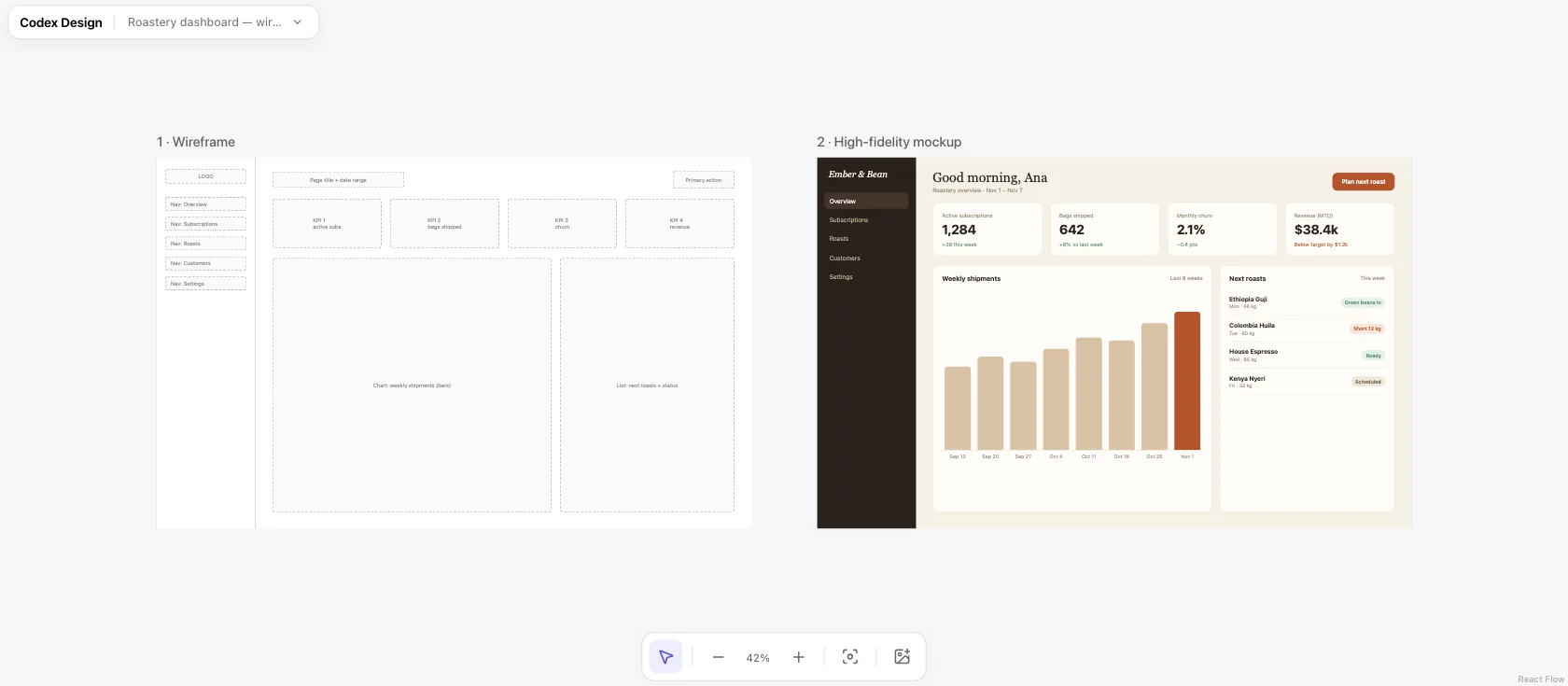
If you have a design system, a DESIGN.md file keeps every mockup on brand without repeating the rules in each prompt.
Step 4: Explore a mood with images (optional)
Before you commit to a style, mockup images are a quick way to try several. In Codex, include $imagegen to call the image generation skill.
$imagegen Create three mockup images of this dashboard in different styles: warm editorial, dark and technical, and bright and friendly. Desktop screen, realistic UI text and numbers, no device frame.
Pick a direction, then attach the image you like to the high-fidelity prompt in step 3. Treat images as references: small text and exact spacing still need checking.
Step 5: Make variations and compare them
Ask for two or three versions of the same screen that differ on purpose, then look at them next to each other. On a Codex Design canvas, each version appears as live HTML beside the others and beside your wireframe, so you can see what changed at a glance.
Make two more versions of the mockup with the same content: one denser for power users, one with larger numbers and fewer details for a quick morning check. Keep each in its own file.
Step 6: Hand it off
- To stakeholders: share the HTML file or a screenshot. HTML files open in any browser and show the real layout at real size.
- To development: ask the agent to rebuild the approved mockup in your app, using your framework and components. The mockup becomes the spec, as in how to design UI with Codex.
Tips
- One screen per file. Small files are quick to revise and easy to compare.
- Fix the layout before the style. Changing a wireframe takes seconds; restyling three mockups takes longer.
- Use real sizes and real data. 1440×900 for desktop, 390×844 for phone, and believable numbers.
- Watch for generic patterns. See AI UI design tells for what to avoid.
Frequently asked questions
Can AI make a wireframe from a text description?
Yes. Describe the screen and its content and ask for a low-fidelity HTML wireframe, as in step 2. Codex returns a file you can open, edit, and turn into a high-fidelity mockup.
Should I make mockups as images or HTML?
Use images to explore a mood quickly, and HTML for anything you want to evaluate at real size or build. HTML mockups can be clicked, resized, and edited, and they move straight into code.
Do I still need Figma?
Not for exploring and testing directions. Teams that keep their design system in Figma often still use it for shared libraries and handoff.